Git Oops - A .gitconfig and alias example
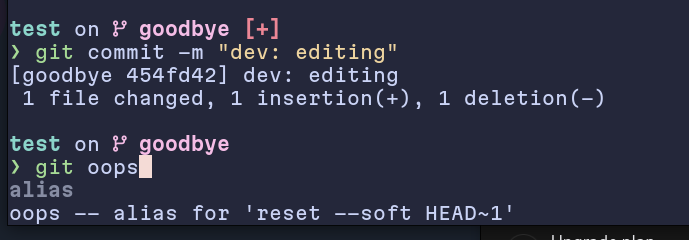
I find myself committing to the wrong branch all the time. Sometimes I have a typo in the commit message. Or maybe I staged one too many files. I would spend a lot of time trying to remember the perfect command to let me change a specific part of my version control system. Rather than trying to remember the correct commands I made an alias:
git oops
oops will undo the last commit and keep any changes staged. It uses the
“alias” section of .gitconfig, that allows a user setup their own nicknames for
commands. It is an alias for reset --soft HEAD~1
How to set it up⌗
To set up an alias, edit the .gitconfig file. Well, there are actually 3 git config files that modify how your git environment works:
- System:
/etc/gitconfig- Modifies the environment for all users - User:
~/.gitconfig- Modifies the environment for a single user - Repository:
.git/config- Modifies the environment for a single repository
I would recommend setting this up in the user config file (~/.gitconfig). This
way it changes how you interact with git for all your projects, but does not
effect the other users on your system.
.gitconfig:
[alias]
oops = reset --soft HEAD~1
The config can also be
modified using the git config command:
git config --global alias.oops
"reset --soft HEAD~1"
I chose to call my alias “oops”, but feel free to call it whatever you like! Here it is an example of a situation I would use git oops.
In practice⌗
Here is an example of how I would use the git oops command:
1. First I setup a new git repository⌗
git init
hint: Using 'master' as the name for the initial branch. This default branch name
hint: is subject to change. To configure the initial branch name to use in all hint: of your new repositories, which will suppress this warning, call:
hint:
hint:   git config
--global init.defaultBranch <name>
hint:
hint:
Names commonly chosen instead of 'master' are 'main', 'trunk' and hint: 'development'. The just-created branch can be renamed via this command:
hint:
hint:   git branch -m <name> Initialized empty Git repository in /home/eric/Projects/test/.git/
Oh! I do not have a default branch set yet for my git environment. I will set it to “main” using the git config command:
git config --global
init.defaultBranch main
See the git config command can come in handy. I
used the --global flag to set the default branch for all my repositories.
There are 3 flags that can be used with the git config command:
--systemto set the default branch for all users--globalto set the default branch for all repositories--localto set the default branch for the current repository
Now my ~/.gitconfig file looks like this:
[alias]
oops = reset --soft HEAD~1

[init]
defaultBranch = main
And to modify my current branch to be called “main” I will use the git branch -m command:
git branch -m main
2. Now I will make a commit⌗
echo "Hello World" > hello.txt git add hello.txt
git commit -m "Initial commit"
commit aeec41cdae9a68fcb294950344d88ec0f34e1806 (HEAD -> main)
Author: John Doe <[email protected]>
Date:   Sat Oct 12 11:56:34 2024 -0400

    Initial commit
3. A mistake! I want to undo the last commit⌗
echo "Goodbye World" > hello.txt
git add hello.txt
git commit -m "Goodbye World - Bad commit"
git log
[main e93b573] Goodbye World - Bad commit 1 file changed, 1 insertion(+), 1 deletion(-)
commit e93b5731e7107455710306ebefd2cc61a9911a16 (HEAD -> main)
Author: John Doe <[email protected]>
Date:   Sat Oct 12 11:59:17 2024 -0400

    Goodbye World - Bad commit

commit aeec41cdae9a68fcb294950344d88ec0f34e1806 Author: John Doe
<[email protected]> Date:   Sat Oct 12 11:56:34 2024 -0400

    Initial commit
4. Use the git oops command to undo the last commit git oops⌗
This will run git reset --soft HEAD~1 which will undo the last commit, but
keep the changes staged.
git status
On branch main
Changes to be committed:
  (use "git restore --staged <file>..." to unstage)
    modified:   hello.txt
5. Now I can do something else with that commit, such as make a new branch and⌗
commit there
git checkout -b goodbye
Switched to a new branch 'goodbye'
git commit -m "Goodbye World"
I dont need to add the file again, because it is already staged from the last commit.
Conclusion⌗
I hope you find this alias useful. We have dug into the git config files, and
how to set up an alias. I also showed two ways of modifying the git config, by
editing the file, or using the command line argument git config. If you have
any other useful aliases, or sticky git situations that need an easier command
to solve, drop me a line. 😁
-E